Summaries and labels, done for you
Articles get a short summary and a few labels. Images get a description, and a screenshot or a photo of a page has its text written out, so you can search it.
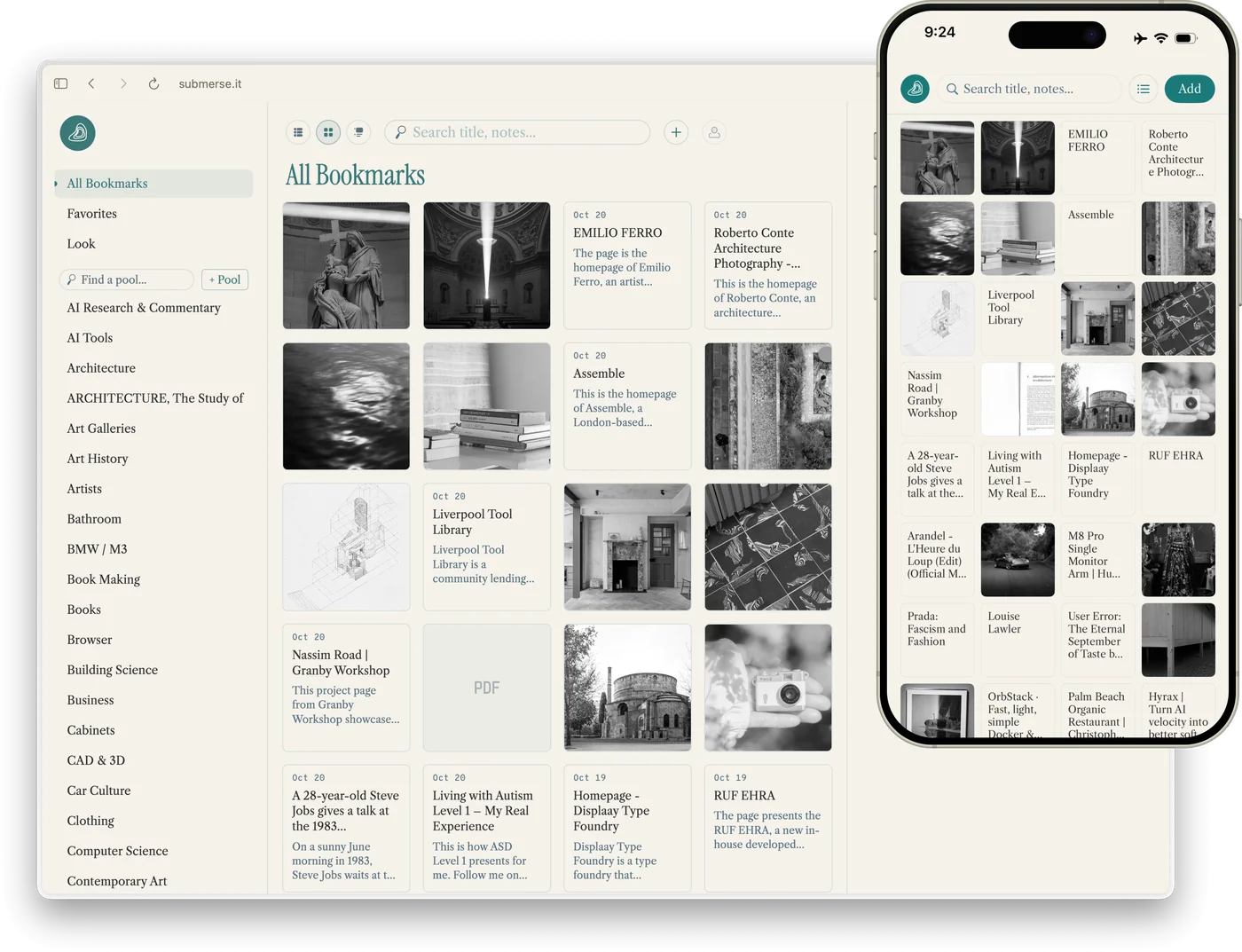
Keep the links, images and PDFs you care about in one place. Submerse summarizes and labels what you save, so your library stays organized and easy to search.
Search finds anything you saved, by its title, your notes or its summary. If you'd rather label things yourself, you can turn the AI off.
Submerse adds a summary and a few labels as you save, so your library stays in order without any filing.
Sort things into pools, your own collections. A pool can also gather everything with the labels you pick.
No feed and no recommendations: only what you and the people you share with save.
With the Chrome extension, save the page you're reading straight into a pool. Right-click an image to save just the image. Get it from the Chrome Web Store.
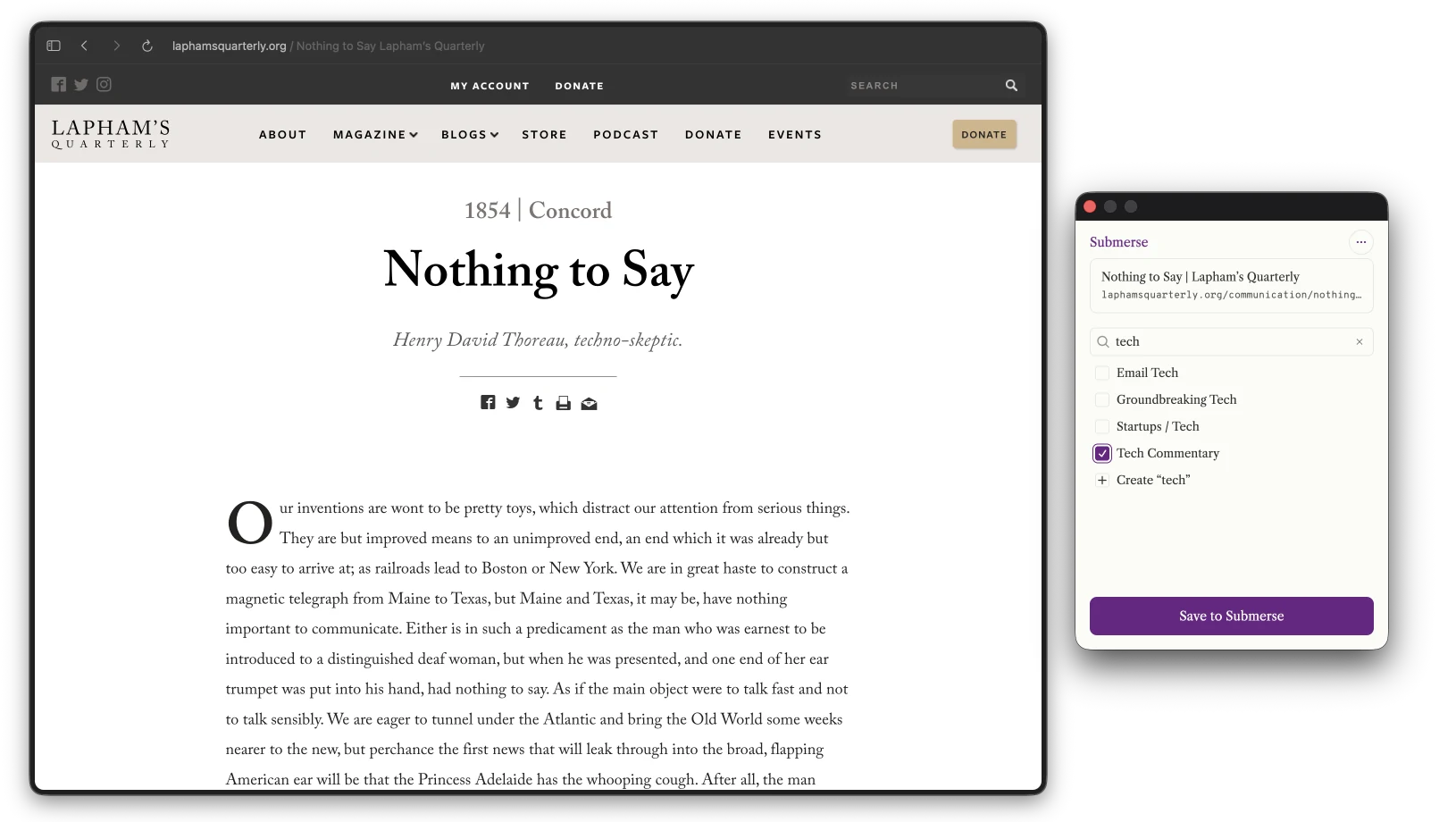
Articles get a short summary and a few labels. Images get a description, and a screenshot or a photo of a page has its text written out, so you can search it.
Search your titles, notes and summaries, including the words inside your screenshots. Results appear as you type.
For most articles, Submerse keeps a clean, readable copy of the text, so you can still read it if the page changes or disappears.
Put anything in as many pools as you like. Keep a pool private, share it, or publish it as a public page.
Share links, photos and PDFs to Submerse from any app. The iPhone app is in beta; Help explains how to install it.
The submerse command-line tool lets you save, search and organize your bookmarks from a terminal. On a Mac, install it with Homebrew; Help explains how.
Import bookmarks from your browser, a CSV file or Are.na. Export to Are.na or a spreadsheet whenever you like.
Everything included:
14-day free trial, no card needed. Android is coming in 2027.
Questions about pricing or billing? Email us at support@submerse.it.
Make an account and start saving. No card needed.